
Desktop App
AWS · IAM · S3
AWS Vault Manager
Hand each application its own AWS access key, scoped to exactly one S3 bucket — and keep every secret in an encrypted vault on your Mac instead of a shared spreadsheet.
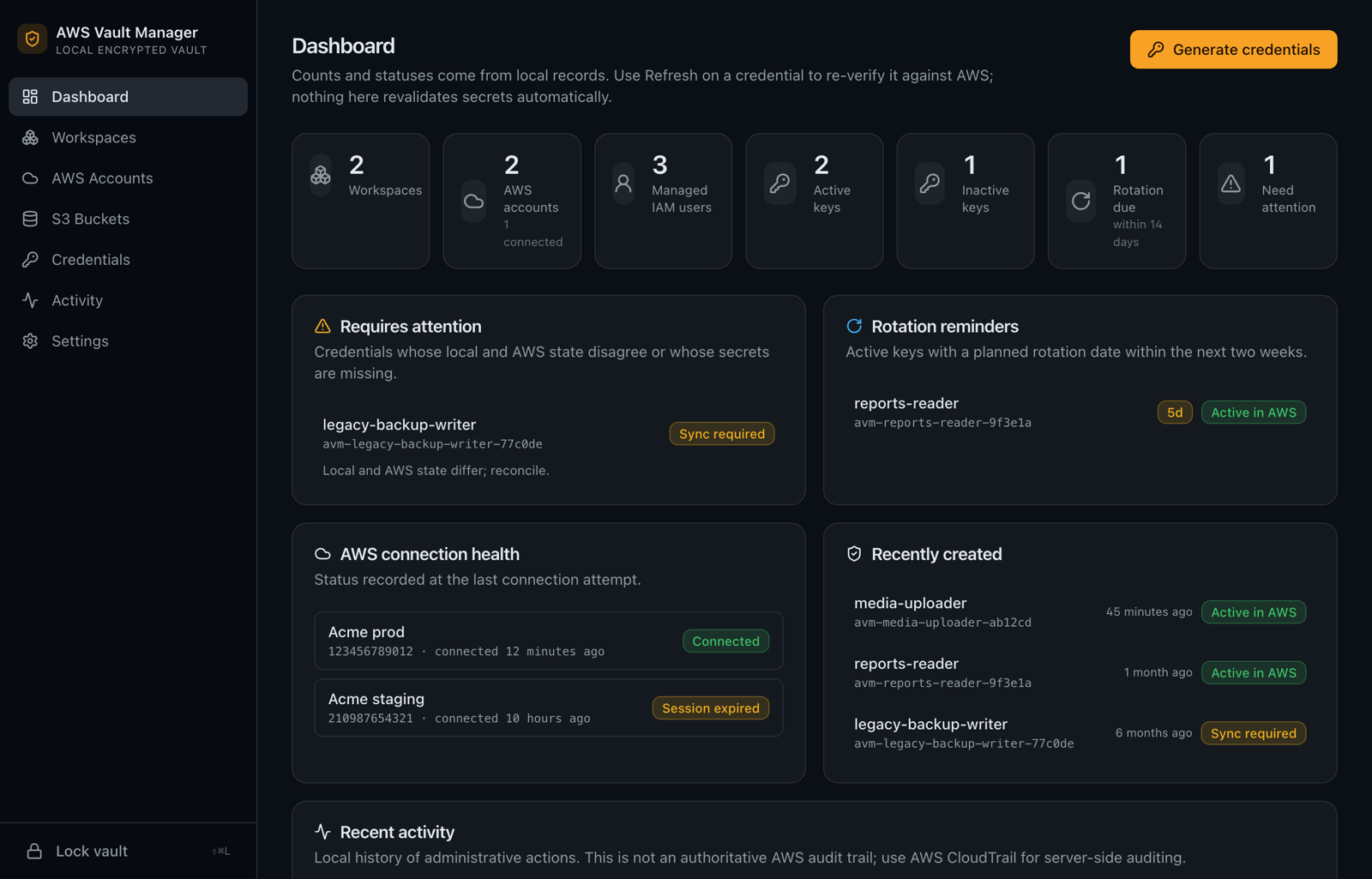
Hand each application its own AWS access key, scoped to exactly one S3 bucket — and keep every secret in an encrypted vault on your Mac instead of a shared spreadsheet.
Features
Stop sharing one powerful access key between projects. AWS Vault Manager creates a dedicated IAM user with an exact S3 policy for each application, and remembers where every key went.
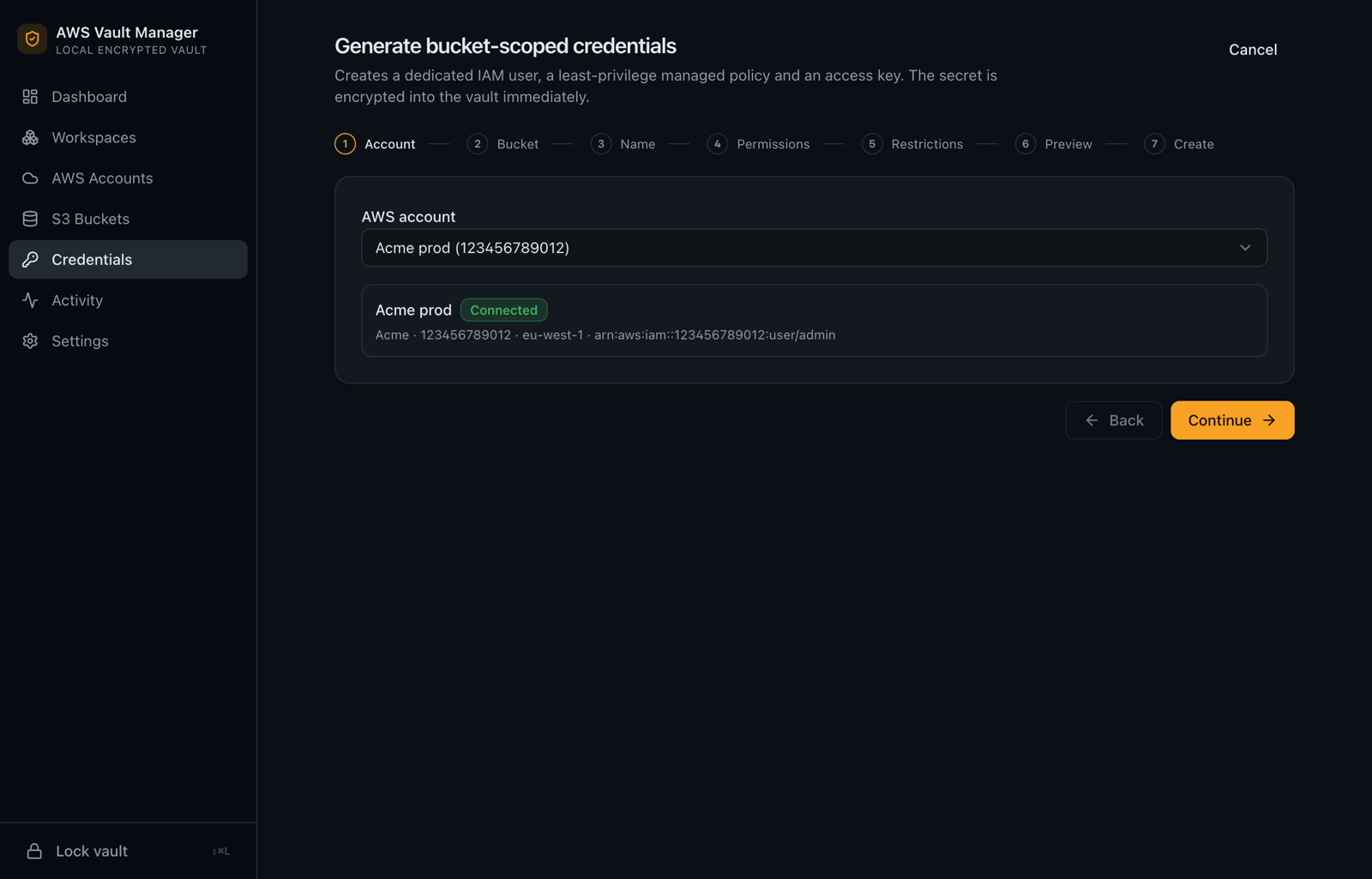
Pick a bucket (and optionally a key prefix such as uploads/), choose Read Only, Upload Only, Read/Write or custom actions, and get an IAM user, policy and access key that can touch nothing else.
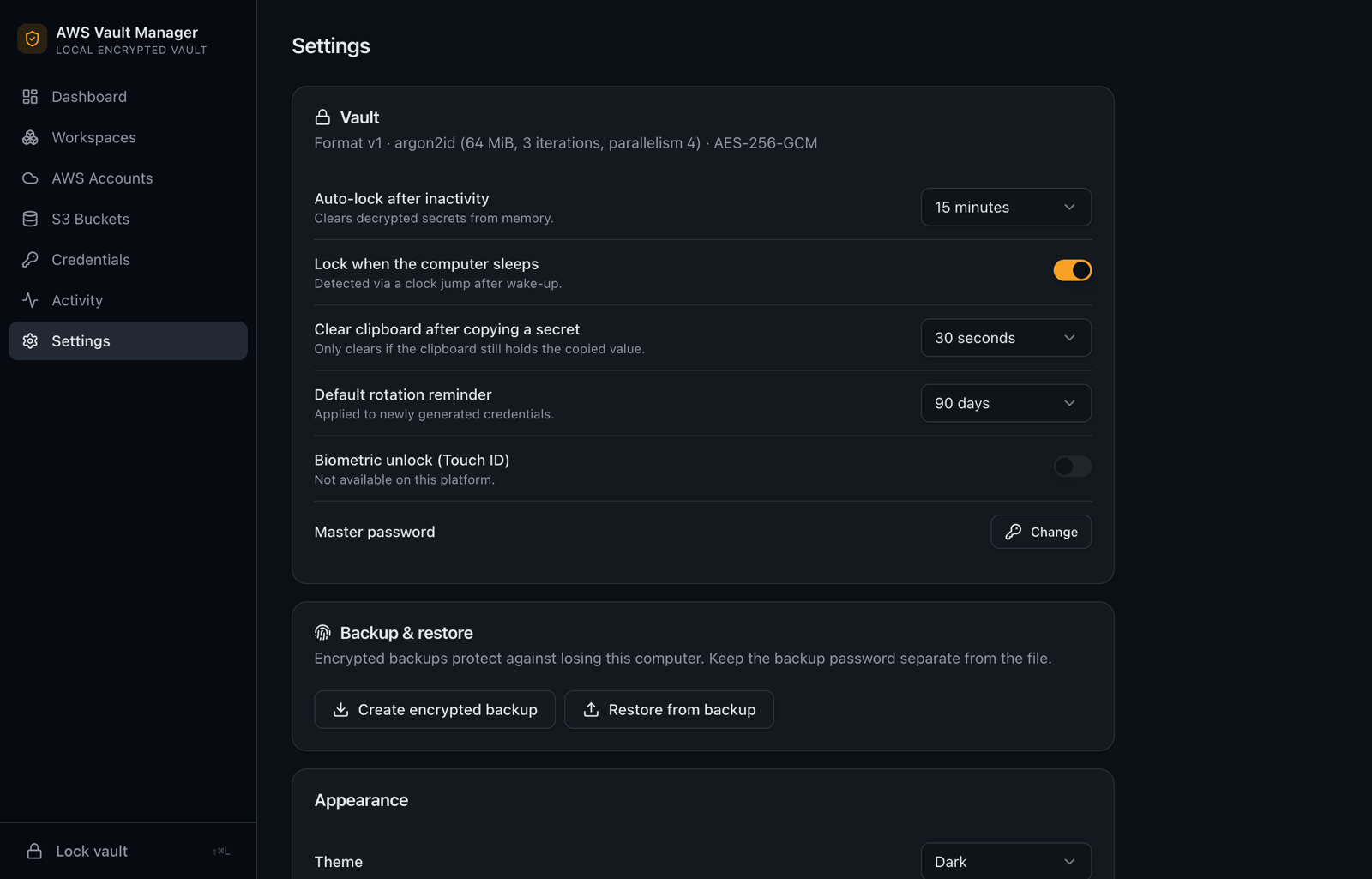
Secrets are protected by a master password with Argon2id and AES-256-GCM, stored only on your Mac. The vault locks on inactivity, sleep and quit, and Touch ID can unlock it.
Every wizard ends with the precise IAM JSON that will be sent to AWS, a plain-language summary of what the key can do, and warnings about bucket policies, SCPs and boundaries that still apply.
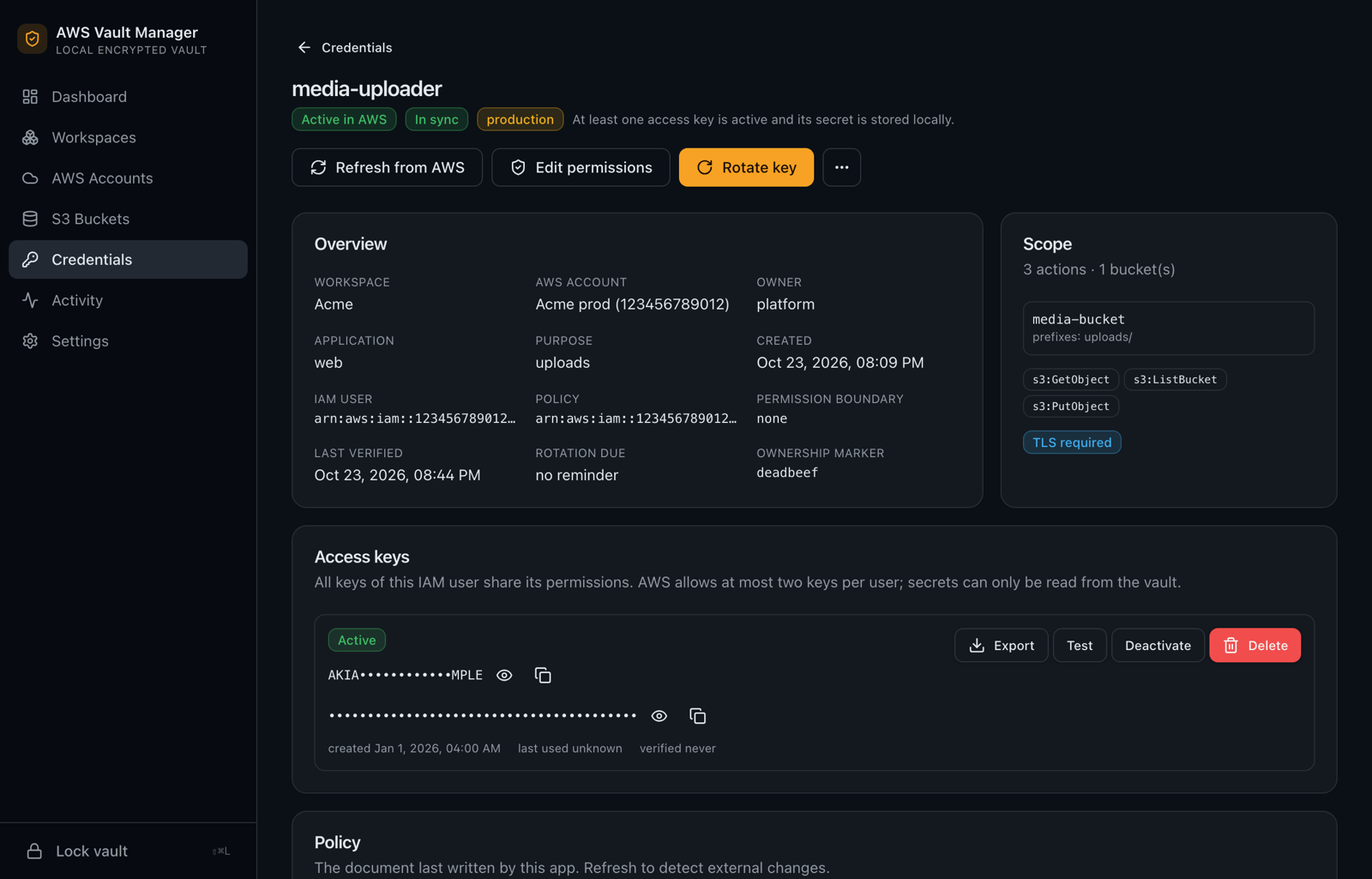
Rotate in steps: create the replacement, update your apps, test it, deactivate the old key, then delete it when you say so. Nothing is deleted automatically, and the two-key IAM limit is respected.
Add a bucket, change Read Only to Read/Write or tighten a prefix. You get a before/after diff, expansions need an explicit confirmation, and changes made outside the app are detected instead of overwritten.
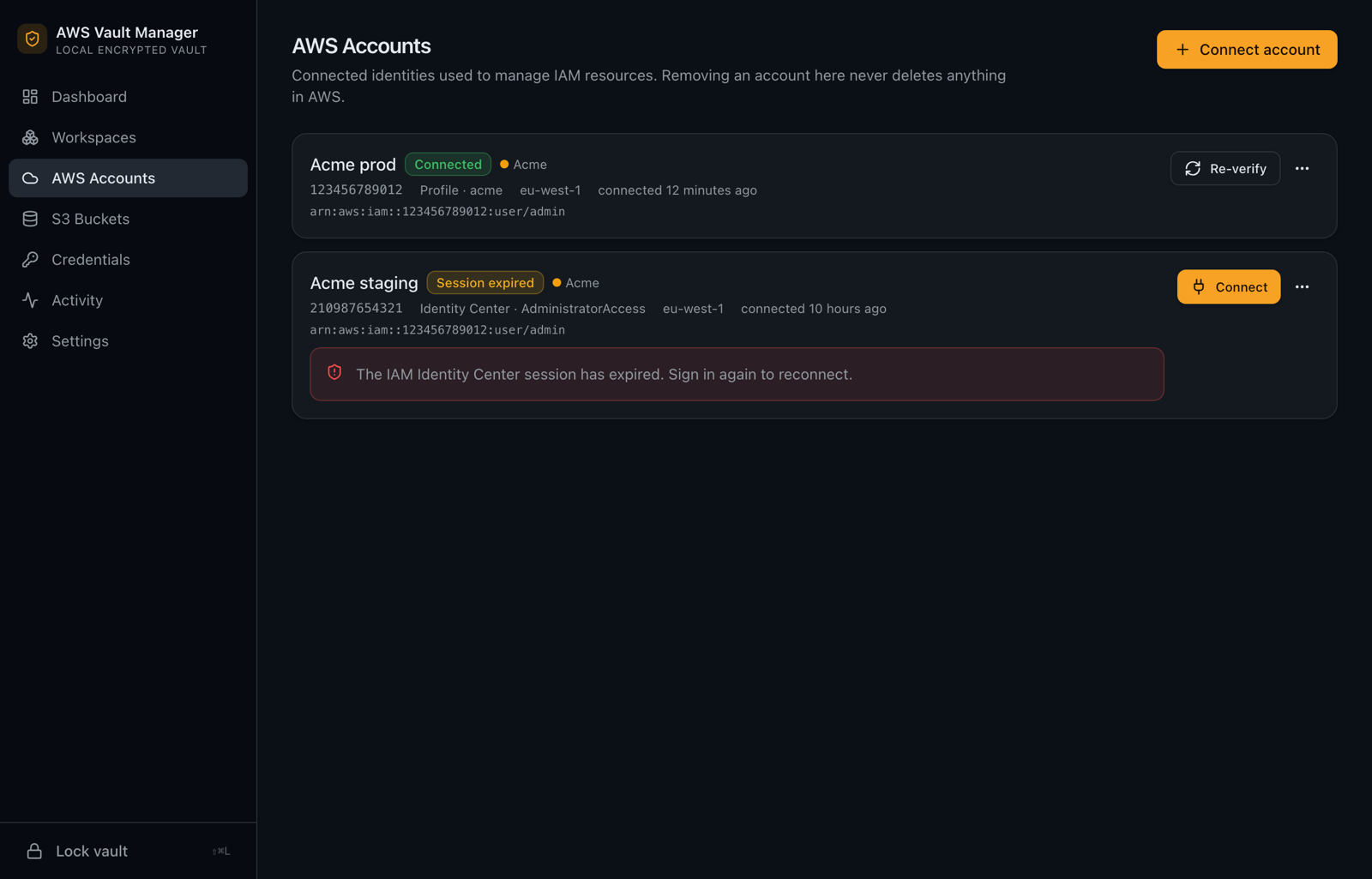
IAM Identity Center with a browser sign-in, profiles from ~/.aws, AssumeRole with MFA, or an access key. The app checks which permissions your identity really has instead of assuming it is an administrator.
Copy a Laravel .env block, an AWS CLI profile, JSON or shell exports with correct escaping. The clipboard clears itself afterwards.
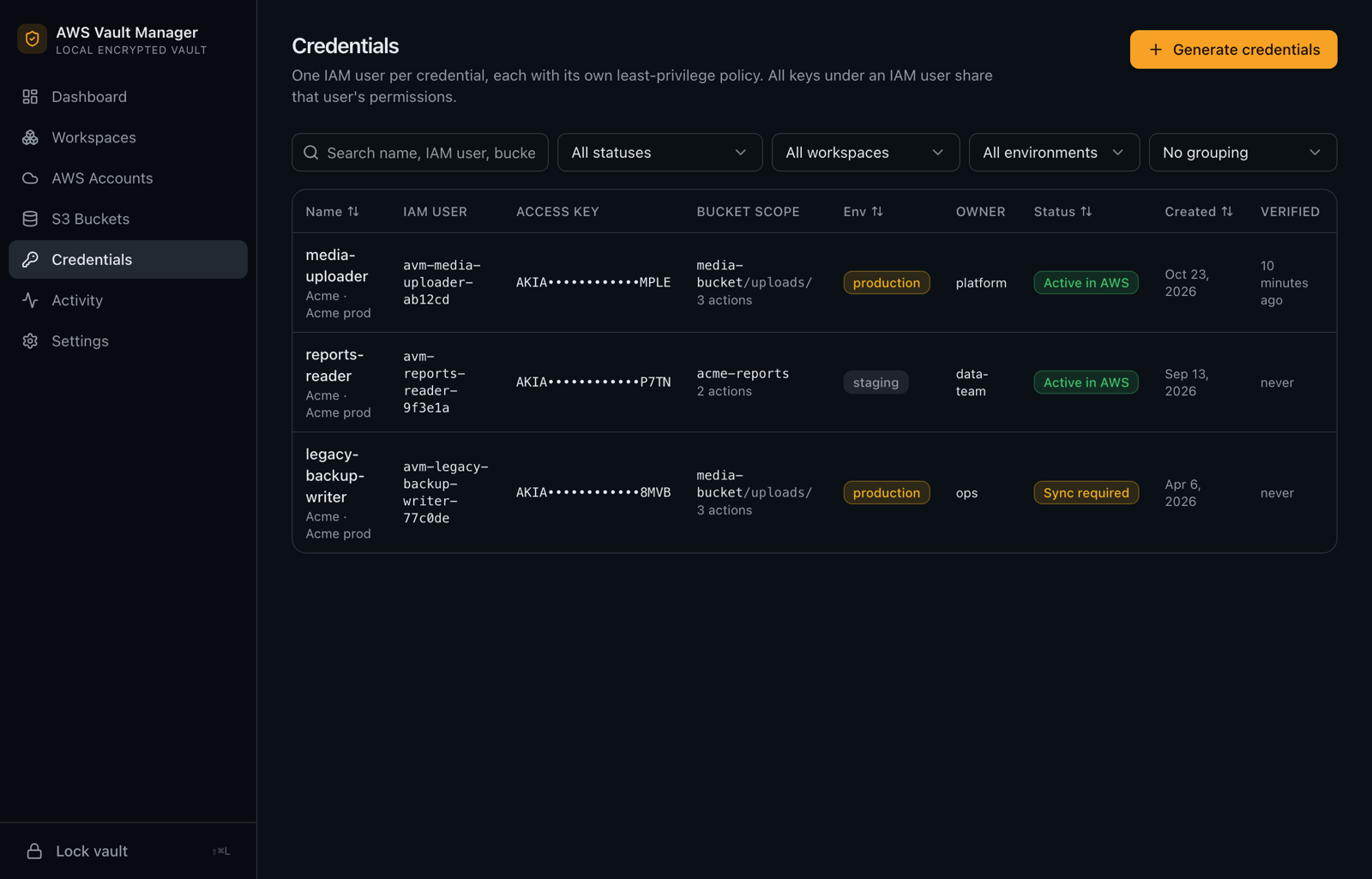
Each credential records its purpose, application, owner and environment, plus a rotation reminder. Resources are tagged in AWS, and the app refuses to touch anything it did not create.
No account, no hosted backend, no analytics. The only network traffic goes to AWS APIs and the signed update check. Encrypted backups let you move the vault to a new Mac.
Built with Tauri and Rust for macOS 11+ (Apple Silicon). Signed and notarized.
Screenshots
Rendered from the app with made-up Acme sample data. No real AWS account is shown.
Getting Started
Pick a master password on first launch. It never leaves your Mac and cannot be recovered, so make an encrypted backup from Settings.
Sign in with IAM Identity Center or use an existing profile or role. Your identity needs the IAM permissions listed in the app’s documentation — not the root user.
Discover buckets or type a name, choose a template, add a prefix or TLS and IP restrictions, and review the exact policy.
The IAM user, policy and key are created and the secret is encrypted into the vault. Copy it as a Laravel .env block or CLI profile.
Follow the rotation wizard, then revoke the old key once your apps are updated.
Download
Free to download. Signed and notarized for macOS, with built-in updates.
We design and build desktop apps, internal tools and developer tooling for startups and enterprises.